Bulk upload template on Meesho, Flipkart and Amazon: how to fill it
By StitchMagic team · Last checked and updated 22 October 2026
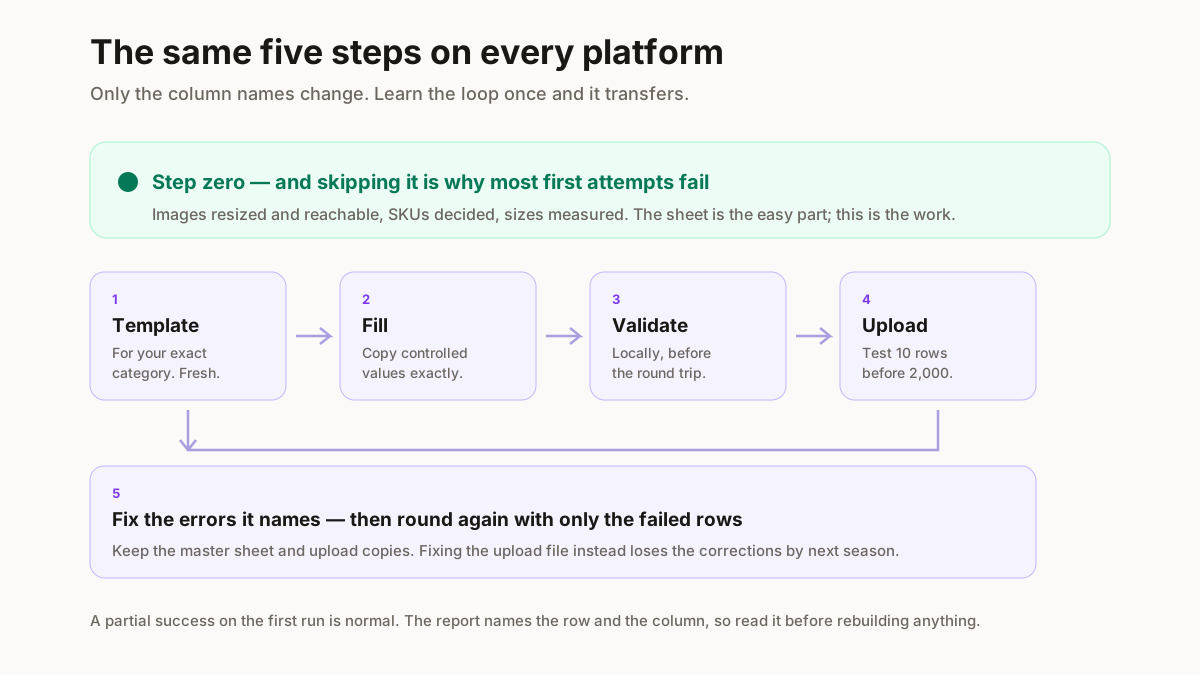
A bulk product upload works the same way on all three marketplaces: pick the exact category, download that category’s Excel template, fill one row per product, then upload it and fix the rows that come back. On Meesho the template is under Catalog Upload → “Add Bulk Catalog”; on Amazon.in it is Inventory → “Add products via upload” (official help, retrieved 4 October 2026). On Meesho, upload the photos in “Images Bulk Upload” and paste the generated links into the sheet.
Listing a few styles at a time? ListMagic, a Chrome extension, fills the Meesho catalog form; you press Submit. Free plan to start; Seller Pass ₹99 a month.
Three templates
Bulk upload template on Meesho, Flipkart and Amazon compared
| Meesho | Amazon.in | Flipkart | |
|---|---|---|---|
| Where the template is | Supplier Panel → Catalog Upload → “Add Bulk Catalog” → choose category → download | Inventory → “Add products via upload” → download the Inventory File | Seller guides describe Listings → Bulk Upload → download the template; Flipkart’s own help pages did not load for us |
| File | Excel: instructions in tab 1, catalog details in tab 2 | Excel: instructions, “Data Definition sheet”, “Template Sheet” | Check the template’s instructions tab |
| How mandatory columns are marked | Red top row = mandatory, green = recommended | Mandatory fields “clearly highlighted in bold” | Check the template’s instructions tab |
| Images | Upload in “Images Bulk Upload”, then paste the generated links into the image columns | Follow the Data Definition sheet | Follow the template’s instructions |
| Variants | Per the category template | Parentage, Parent SKU, Relationship Type, Variation Theme columns | Per the vertical’s template |
| Bulk price and stock updates | — | Same upload route | Seller FTP CSV with “Your Selling Price” and “Your Stock Count”, picked up every hour |
Sources: Meesho: bulk catalog upload; Amazon.in: list your products in bulk (Apr 2016) and variations using templates (Jun 2017); Flipkart Seller FTP. All retrieved 4 October 2026.
What carries over: your own master sheet
Keep one row per variant with your SKU, MRP, selling price, size, colour, HSN, GST rate and image file name. You map that master into each template.Flipkart lists against its catalog
A Flipkart listing is “the fundamental sellable unit”, tied to a product ID in its catalog (Listing API docs), so an upload can add your offer to an existing product.Step by step
How to bulk upload products on Meesho, Flipkart and Amazon
- 1
Pick the exact category and download its template
A kurti template won’t take footwear. On Meesho, search the category under “Add Bulk Catalog” and download; on Amazon.in, generate it under “Add products via upload”.
You should see: an Excel file with an instructions tab.
- 2
Get the images ready before the sheet
On Meesho, upload the photos in “Images Bulk Upload” and paste the generated links into the image columns. Size them first and name each file by SKU.
You should see: one link per uploaded image.
- 3
Fill the mandatory columns first
Meesho marks them with a red top row, green is recommended; Amazon.in uses bold, explained in the Data Definition sheet. Keep descriptions short: Meesho says long ones lead to rejection.
You should see: no blank cell in any mandatory column.
- 4
Put sizes and colours in parent and child rows
On Amazon.in, set Parentage, give each child the Parent SKU, set Relationship Type to “Variation” and pick the Variation Theme; each child needs its own SKU and Product ID. See the worked example.
You should see: one parent row per style, one child row per size-colour combination.
- 5
Upload a small test file, then the rest
Copy a few rows into a fresh template, upload them and check them in your catalog. A mistake caught on a few rows is cheaper than the same mistake on every row.
You should see: on Amazon.in, a confirmation once the file is accepted.
- 6
Read the result and fix only the failed rows
On Meesho, the error file lists errors in Error Status and Error Message; fix your original file and use “upload new file” on the QC Error page (QC lesson, 4 October 2026). Copy the fix into your master sheet too.
You should see: the file back in Quality Check; a catalog goes live once it passes.
For step 2, our Meesho image resizer makes square 1000 × 1000 JPGs with no crop and white fill: our tool’s size, not a Meesho rule, since Meesho publishes no pixel size on its public pages.
Worked example
Worked example: one kurti in 4 sizes and 3 colours
| SKU | Parentage | Parent SKU | Relationship Type | Variation Theme | Colour | Size |
|---|---|---|---|---|---|---|
| MEERA-KRT | parent | — | — | size and colour | — | — |
| MEERA-KRT-RED-S | child | MEERA-KRT | Variation | size and colour | Red | S |
| MEERA-KRT-RED-M | child | MEERA-KRT | Variation | size and colour | Red | M |
| MEERA-KRT-RED-L | child | MEERA-KRT | Variation | size and colour | Red | L |
| MEERA-KRT-RED-XL | child | MEERA-KRT | Variation | size and colour | Red | XL |
… plus 8 more child rows for Blue and Green, each with its own SKU and the same Parent SKU. StitchMagic example, 4 Oct 2026; column names from Amazon.in’s variation guide (Jun 2017).
Pick the Variation Theme value from your template’s valid values tab. Print the same SKUs as stickers with the bulk barcode generator.
Fixes
Why bulk uploads fail and how to fix them
Wrong category template
Duplicate SKU
Image link error
Long or messy description
Selling price above MRP
Children show as separate products
GST rate from an old sheet
Sources: Meesho QC lesson and bulk upload lesson; PIB, 56th GST Council recommendations. All retrieved 4 October 2026.
Find the HSN code for each product with the HSN code finder, which searches our own table of apparel, footwear, accessories and jewellery codes.
For the full Meesho-only walkthrough, see Meesho bulk listing with the Excel template. For only a few products, Meesho’s single route (Catalog Upload → “Add Single Catalog”) is quicker than a sheet.
Frequently asked questions
Where do I download the Meesho bulk listing Excel sheet?
It is the bulk upload template: Supplier Panel → Catalog Upload → "Add Bulk Catalog", select your category, then download the Excel template (Meesho bulk upload lesson, retrieved 4 Oct 2026).
How do I bulk upload products on Amazon India?
Use Inventory → "Add products via upload", download the Inventory File for your category, fill the bold mandatory fields and upload it (Amazon.in seller blog).
How do I bulk upload products on Flipkart with Excel?
Seller guides describe Listings → Bulk Upload, where you download the Excel template for your vertical, fill it and upload it; Flipkart’s own help pages did not load for us.
Is there one bulk upload template for Meesho, Flipkart and Amazon?
No: each template has its own columns and rules. Keep one master sheet and copy from it into each template.
How do I add size and colour variants in a bulk upload?
One parent row and one child row per size-colour combination; on Amazon.in fill Parentage, Parent SKU, Relationship Type and Variation Theme.
What GST rate do I put for clothes in the sheet?
5% if the sale value is up to ₹2,500 per piece and 18% above that, since 22 September 2025 (PIB, 56th GST Council).
Related seller guides and tools
Menu names and template rules come from the marketplaces’ own help pages, retrieved 4 October 2026 (Amazon.in’s are seller-blog posts from 2016 and 2017). Marketplaces change their templates; if a screen no longer matches, trust the screen and the template’s instructions tab.
StitchMagic makes seller tools and one AI listing agent (ListMagic) for online sellers in India.